Alarm Clock for Crestron
Alarms and timers on the Crestron Home touch panel, and a way to make them do something in the house.
The homeowner sets a wake-up alarm on the panel beside the bed, and at 07:00 the landing lights come up, the blinds open and the kitchen speaker plays a chime. A timer on the kitchen panel ends the same way. The Alarm Clock driver adds the alarms, the timers and the tile they live on; Crestron Home programming does the rest.
The latest driver package, version history and release notes are on the Alarm Clock driver hub. Download the current build there, and use these pages to install and commission it.
What it does
- Alarms. A time of day, repeating on the days you choose, or once only. Each one can be switched on and off, and the tile shows when the next one is due.
- Timers. A countdown in hours, minutes and seconds. Start, restart and cancel from the panel.
- When an alarm or timer goes off, it can do any combination of:
- raise up to ten events that you name yourself ("Morning lights", "Open blinds") and use in Crestron Home programming;
- recall a lighting scene;
- play a chime through the LCD Sonos Chime driver.
- Ten passthru delays for programming. "Start delay 3 for 20 minutes" raises delay 3's own event when the time is up.
- Restarts and power cuts. Alarms, running timers and running delays are saved on the processor and carry on after a restart. Anything that fell due while the processor was off is recorded as Missed in the history and is not run late.
In the Crestron Home app
Homeowners set alarms and timers from the Alarm Clock tile, on any touch panel, phone or tablet. See Using the Alarm Clock for every screen.
The Alarm Clock app
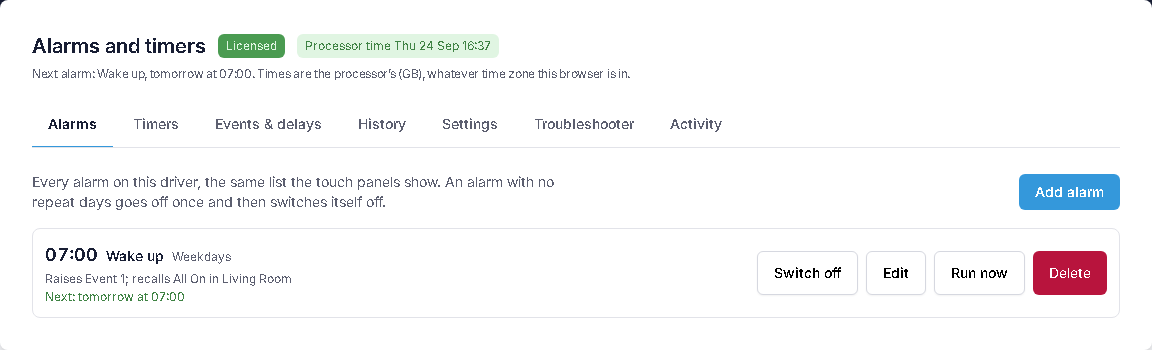
The driver comes with a browser app served from the processor, opened from the driver's configuration page (Alarms & Diagnostics). It has these tabs:
| Tab | What it's for |
|---|---|
| Alarms | Every alarm and when it next goes off. Add, edit, delete and Run it now. |
| Timers | Every timer and its state. Start, cancel and run. |
| Events & delays | The names of the ten events and ten passthru delays. |
| History | What went off, what it did, and anything missed. |
| Settings | Where the tile appears: the Home page, the room page, or both. |
| Troubleshooter | Checks the licence, the clock, saving, lighting scenes and the Sonos Chime link, and makes a support report. |
| Activity | What the driver has done since it last started. The History tab is the lasting record. |
What you need
- A Crestron Home 4-series processor.
- A licence key: a 30-day trial or a full key from the Alarm Clock product page. A licence key for the version 4 Alarm Clock works here too.
- For lighting scenes: the Crestron Home Web API enabled, followed by a processor reboot.
- For chimes: the LCD Sonos Chime driver installed on the same processor.
Upgrading from the version 4 Alarm Clock
Alarm Clock V2 is a new driver, so it isn't an in-place upgrade. Your licence key carries over, because the driver keeps the same product SKU. Alarms, timers and event names don't: Crestron Home keeps version 4's settings where another driver can't read them. Set them up again on the new driver, point your programming at the new driver's events, and then remove the version 4 driver.